
Revision History & Autosave
No need to fear losing work. NovelThread writes changes to your machine as you type and automatically keeps a version snapshot before every AI write or restore, so you can always compare and roll back.
Steps
- Autosave is "journal first, then commit": every keystroke is written to a local journal and then merged into the prose, with the status bar showing "Saved locally at …" or "Saving…".
- With cloud sync on, the status bar also shows the prose’s cloud state separately: not enabled / syncing / synced to cloud.
- Before every AI continuation, multi-chapter continuation, or restore, NovelThread snapshots the chapter automatically (up to 5 versions kept per chapter).
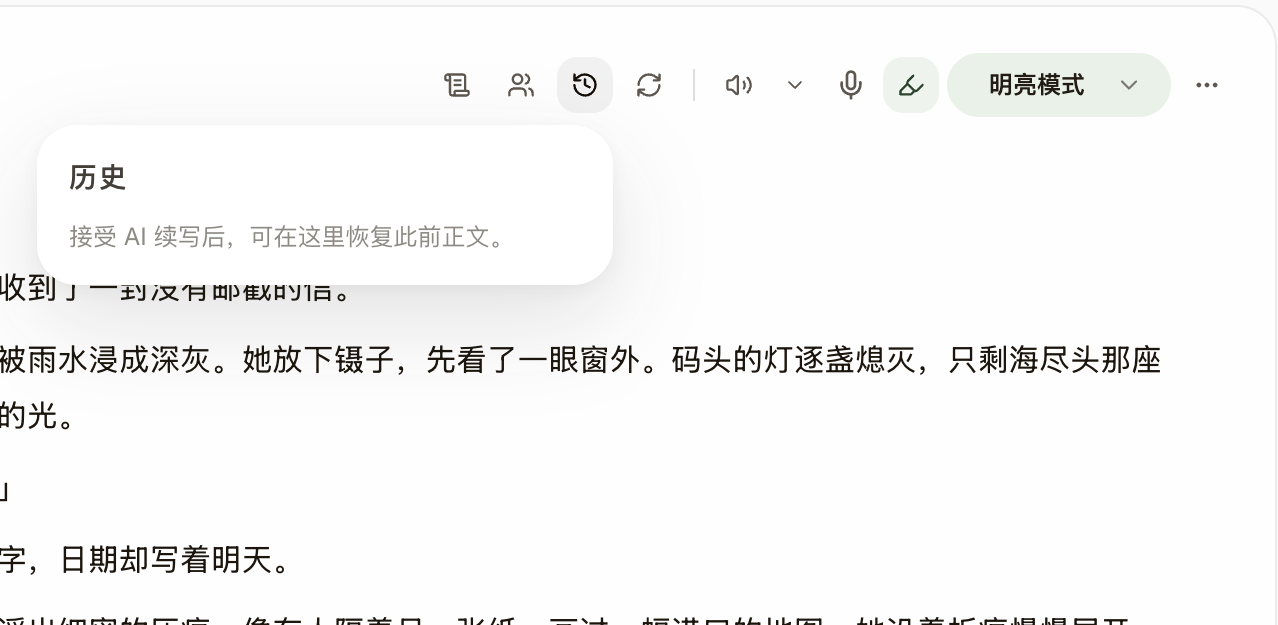
- Click "History" at the top of the editor to open the version list; choose "View Diff" on any version to see a line-by-line comparison (additions underlined, deletions struck through in red).
- Pick a version and click "Restore"; NovelThread first snapshots your current prose before rolling back — so the restore itself can be undone too.