
Inline AI & Continuation
Select a passage to polish or expand it, or describe the change you want in your own words; when you want to push forward, use AI continuation to extend the scene. Either way, you preview first and commit only if you like it.
Steps
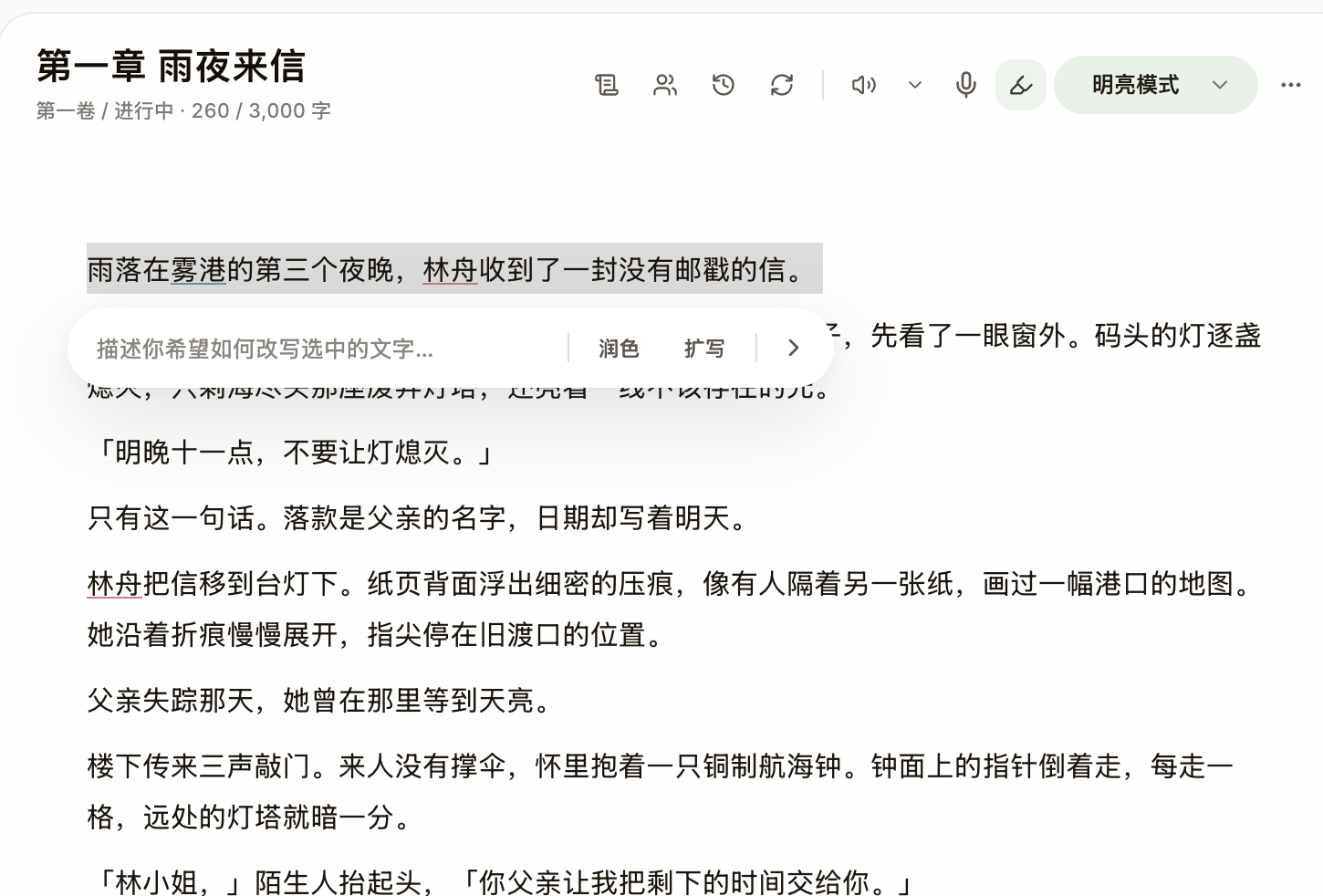
- Select the text to rewrite in the editor, and a floating "AI Rewrite" capsule appears: one-click Polish or Expand, or type exactly what you want in the instruction field.
- Send and the AI result appears as ghost text floating over the sentence while the original stays marked with strikethrough, so you can compare line by line.
- When satisfied, click "Replace text" (or Enter) to commit; if not, click "Discard" (or Esc) to keep the original — you can also "Copy result", reroll with another batch, or "Add to asset library" to save it as an asset.
- To keep writing forward, click "AI Continue" at the top of the editor, or open the "AI Continuation" dialog for multi-chapter continuation with an inspiration angle: Plot Twist / Sharp Dialogue / Psychological Depth / Action & Combat / Atmospheric Detail.
- Every replacement or continuation is confirmed by you — the AI never quietly alters text you’ve already written.