
Immersive Drafting
Hide sidebars and keep nothing on screen except your words. Features paragraph focus, gentle reading themes, and instant local autosave so you can write offline with peace of mind.
Steps
- Create or open a novel from the shelf and enter the Writing workspace: the chapter tree sits on the left, the editor in the middle.
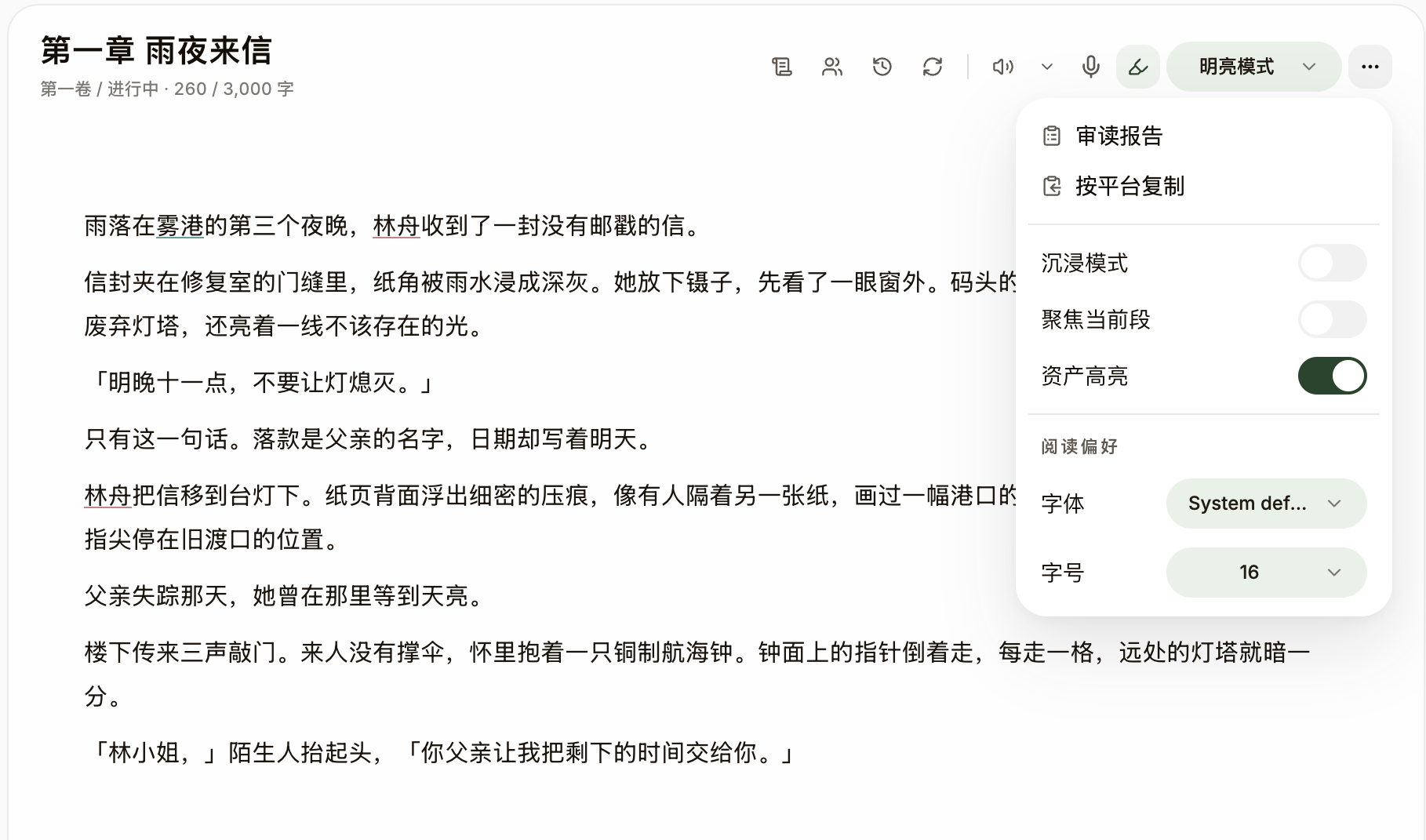
- Open "View Options" in the editor and turn on "Immersive Mode" (Cmd/Ctrl+\) to hide the side panels and center the prose.
- In the same menu you can enable "Focus Paragraph" (dims every paragraph except the one you’re writing) and "Asset Highlight" (lights up assets mentioned in the prose, on by default); reading preferences like font and size sit at the bottom of the menu.
- Switch reading themes in Settings → Appearance: Light, Sepia Paper, and Dark — pick whichever suits the light you’re in.
- Write and it saves: changes are written to your machine automatically, with the status bar showing "Saved locally at …"; you can also press Cmd/Ctrl+S to save a draft manually.