
Asset-Driven Story Bible
Characters, locations, items, factions, rules, events, and custom — seven asset types, centralized in the Asset Library. The AI senses relevant settings as it writes, keeping long books consistent, and assets can be reused across novels.
Download NovelThread — macOS & Windows · View download details
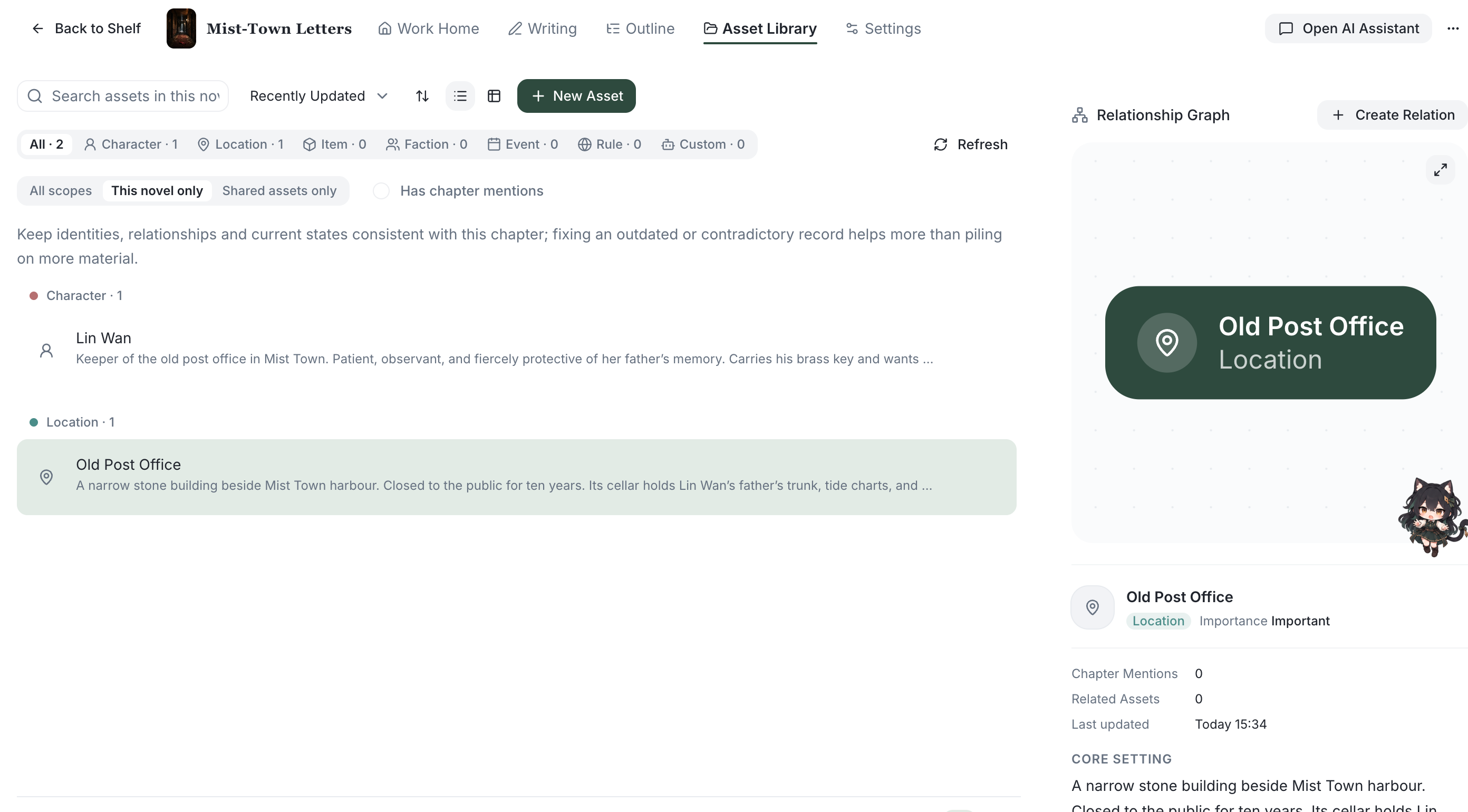
Steps
- Switch to the "Asset Library" in the workspace — the hub for every setting, filterable by seven types: Character, Location, Item, Faction, Rule, Event, and Custom, plus a "Relations" tab for the links between assets.
- When creating an asset, fill in the common fields: name, core setting (system-protected, never changed by AI), current status (the AI may update it as the plot moves), search tags, importance (Normal / Important / Core), and a cover.
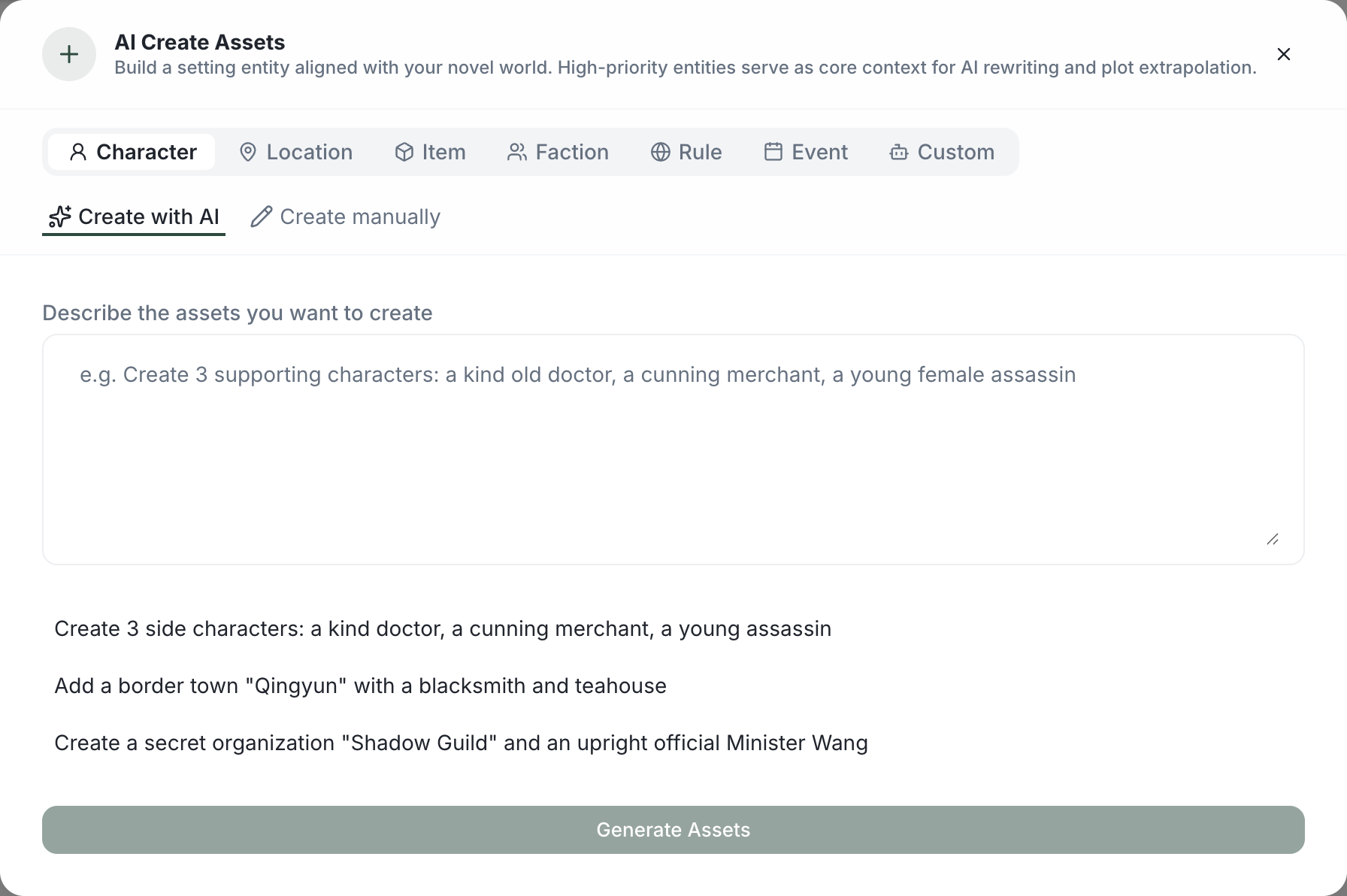
- Let AI do it: describe what you want in "AI Create Assets" and NovelThread generates editable draft cards you confirm with "Create all"; or select a prose excerpt to extract a single asset card in one click.
- Assets carry a scope: global or this-book. Global assets can be shared across novels and managed in the "Asset Library"; a book’s library shows its own assets plus linked global ones.
- A card’s "How the AI uses this card" explains when it enters the AI’s context, so your settings actually serve the writing.
To keep track of motivations and changing relationships, explore character profiles and relationships and record the changes you have confirmed.
A worked example
A character sheet records who Mara is and what she wants. A story bible also records locations, objects and world rules. A relationship records a connection: Mara owes the lighthouse keeper a favor, but suspects him of hiding the letter. After Chapter 3, update the connection to uneasy cooperation and link the change to the chapter.
Download the writing worksheet (Markdown)Review the result
A graph shows the relationships you record. It does not automatically establish every connection in the manuscript. Update motives and links after plot changes, and verify any AI suggestion against the chapter.
Read the complete writing guide