Models & Providers
NovelThread doesn’t lock you into one model. Use the official cloud models out of the box, or bring your own API key (BYOK) to connect directly to almost any compatible provider — including models running on your own computer.
Download NovelThread — macOS & Windows · View download details
Steps
- The easiest path: sign in and use the official cloud models right away — no API key or setup, on every plan including Free.
- To use your own model: open Settings → AI Settings, click "Add text model", and pick a provider preset (DeepSeek, OpenRouter, OpenCode Zen, sub2api, or Custom OpenAI-compatible).
- A preset fills in the Base URL and Model ID for you. Paste the API key you created on the provider’s website, click "Test connection", and save once it succeeds.
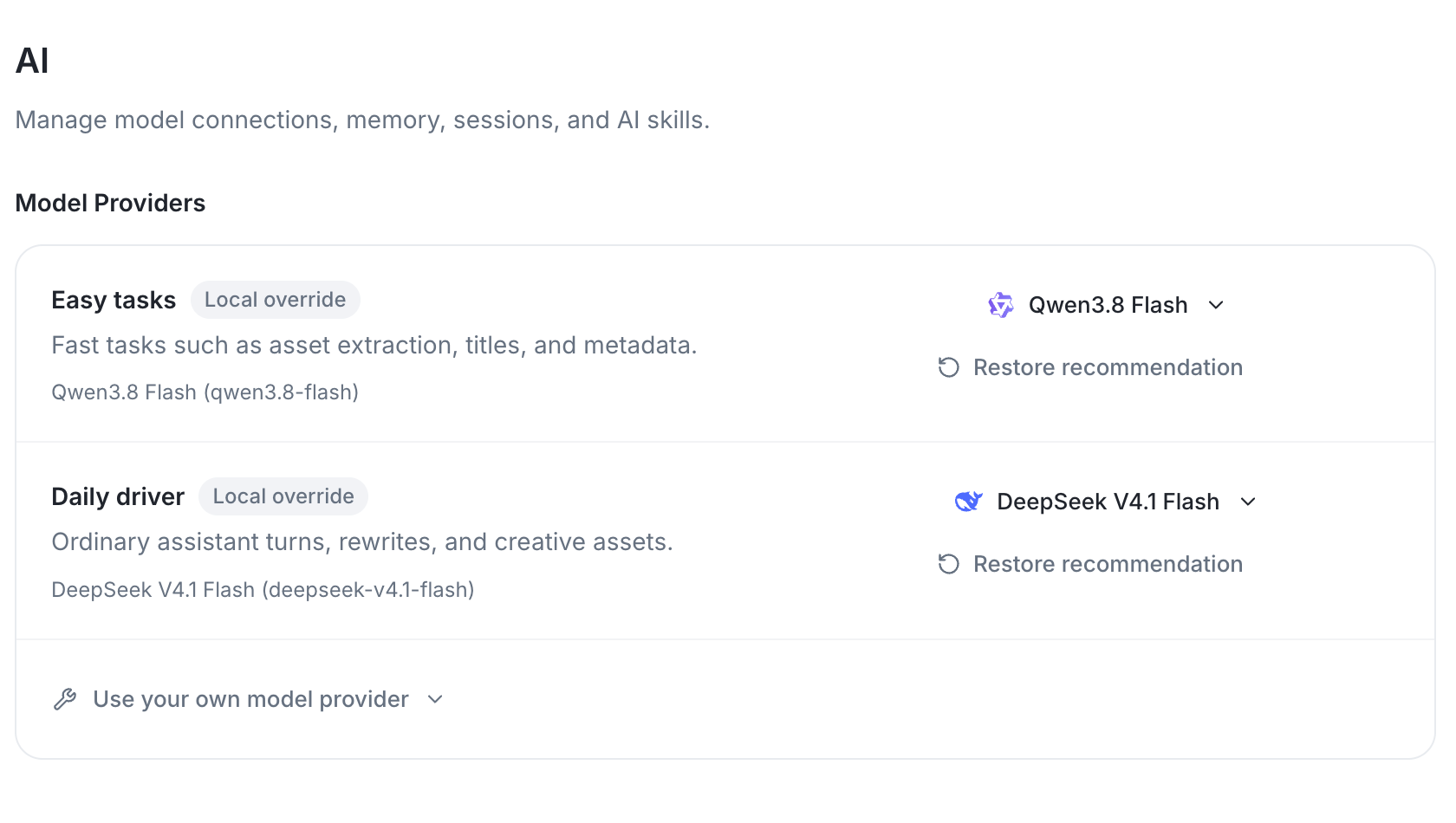
- After saving, assign models to "Lightweight", "Daily Driver", and "Complex Tasks" so each job uses the model that suits it best.
- Covers and reference images are uploaded from your computer and are never sent to any text model.
Bring Your Own Key (BYOK) Setup Guide
BYOK stands for "Bring Your Own Key": you connect your own provider account instead of using NovelThread credits. An active Plus subscription or higher is required. The provider bills you directly; your API key is encrypted in local secure storage, and requests go from your device straight to the provider — never through NovelThread servers.
Three steps from sign-up to writing
- Step 1 · Get a key: sign up on the provider’s website and create an API key (usually a long string starting with sk-). Most platforms show it in full only once — copy and save it first.
- Step 2 · Add it to NovelThread: Settings → AI Settings → "Add text model" → choose the matching preset (Base URL and Model ID fill in automatically) → paste the API key.
- Step 3 · Verify: click "Test connection"; when it succeeds, save, then set the model as "Daily Driver" and start writing.
A complete example: connecting to DeepSeek
Here is exactly what to enter to connect the official DeepSeek API. Other providers work the same way — only the Base URL, Model ID, and website for getting a key change:
- Display name
DeepSeek OfficialAnything you like — just for telling providers apart- Provider
DeepSeekFills in the next two fields automatically- Base URL
https://api.deepseek.comFilled by the preset; never add /chat/completions yourself- Model ID
deepseek-v4.1-flashFind it in the provider’s model list; OpenRouter uses provider/model-name- API Key
sk-•••••••• (create one at platform.deepseek.com)Never displayed in full afterwards; stored encrypted on your machine- Context Window Tokens
128000Must match the provider’s stated limit — too low loses context, too high fails requests- API Mode
Chat Completions APILeave the default unless the provider explicitly requires Responses API- max tokens
65536Advanced setting; leave blank to use the provider default
If "Test connection" fails, check three things first: the key was copied in full (no stray spaces), the Base URL doesn’t end in .../chat/completions, and the provider account has enough credit.
Step-by-Step Configuration Guide
In Settings → AI Settings, click "Add text model". Pay special attention to these fields:
Base URLRequired · Usually ends with /v1- The root address of the provider’s API. A preset fills it in for you; when entering it manually, copy it from the provider’s API documentation — it usually ends in /v1, for example OpenRouter: https://openrouter.ai/api/v1, OpenCode Zen: https://opencode.ai/zen/v1, local Ollama: http://localhost:11434/v1. Stop at /v1 and never include an endpoint such as /chat/completions, or the path is appended twice and requests fail. A few providers are the exception — DeepSeek works with either https://api.deepseek.com or its /v1 form.
Model IDRequired · Listed on the provider’s site- Tells NovelThread which model to call, for example deepseek-v4.1-flash. Presets fill it in; for custom setups, copy the exact ID from the provider’s model list (IDs are case-sensitive). Aggregators usually write it as provider/model-name (e.g. openai/gpt-4o-mini), and some free models end in :free.
API KeyRequired · Created on the provider’s site- Your credential from the provider, usually starting with sk-. Create one under "API Keys" on the provider’s website; most platforms show it in full only once, so copy it immediately. NovelThread never displays it back in full and stores it encrypted on your machine. If it is rejected, check for missing characters or extra spaces, or whether the key was deleted.
Context Window TokensRequired · Copy the provider’s stated limit- The most the model can hold in one request — your prompt, the conversation history, and the model’s reply (measured in tokens). NovelThread uses it to decide when to compact history automatically: too low and the AI forgets earlier chapters too soon; too high and requests fail once the real limit is exceeded. Find the number on the model’s page, for example 128000 for DeepSeek, or 128000 and above for long-context models such as Kimi and Gemini.
API ModeLeave the default- NovelThread supports two protocols: Chat Completions API and Responses API. Almost every provider — DeepSeek, OpenRouter, OpenCode Zen, Moonshot, Ollama, vLLM, and typical proxies — uses standard Chat Completions, so keep the default. Switch only if the provider explicitly says it uses the newer Responses API. The wrong choice usually shows up as an HTTP 404 or a request-format error.
max tokensAdvanced · Output limit per reply- The most tokens a single reply may contain (reasoning plus prose). The default is a generous 65,536; leave it blank to use the provider default. If your provider or proxy enforces a hard per-reply limit (such as 4096 or 8192), enter it to avoid quota errors. A generous limit lets long scenes finish instead of being cut off mid-sentence.
Official links and where to get free keys
Each platform below links straight to its official site, where you can sign up and create an API key. Free tiers and promotions follow the provider’s current terms.
- OpenCode ZenLimited-time free / trial credits
A favorite among developers and writers, frequently offering free endpoints (such as deepseek-v4.1-flash-free). Create a key after signing up, then select the OpenCode Zen preset in NovelThread to fill in the address automatically.
Get a key at opencode.ai → - OpenRouterMany models tagged :free
A well-known aggregator hosting plenty of open models with a :free suffix (Llama, Mistral, Qwen and more), plus generous daily free usage — ideal for low-cost trials and blind comparisons. Model IDs look like provider/model-name:free.
Get a key at openrouter.ai → - Google AI StudioOfficial developer free tier
Google’s developer portal offers free Gemini Flash usage (with per-minute rate limits) — more than enough for polishing a scene or brainstorming an outline.
Get a key at aistudio.google.com → - DeepSeek PlatformOfficial direct / pay as you go
If you would rather avoid free public routes, the official paid API is the simplest choice: data is not used for training by default (per its policy), and models such as deepseek-v4.1-flash are inexpensive enough for everyday drafting.
Get a key at platform.deepseek.com → - OllamaRuns locally / no API fees
Run open models fully offline on your own computer — your manuscript never leaves the machine. Set Base URL to http://localhost:11434/v1 and Model ID to the model you downloaded with ollama pull.
Download at ollama.com →