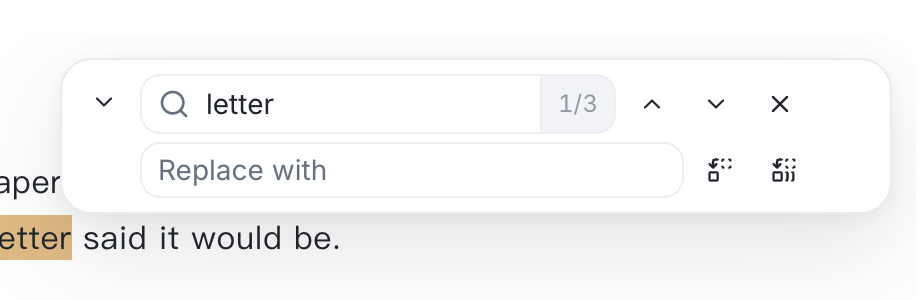
Editor Tools
The prose is a deliberately plain document — no bold or lists to fight with, so exports and platform pastes stay lossless. The editor bundles in-chapter find & replace, flavor-word highlighting, read-aloud, and voice dictation on macOS 26 and later, so drafting and revising stay frictionless.
Download NovelThread — macOS & Windows · View download details
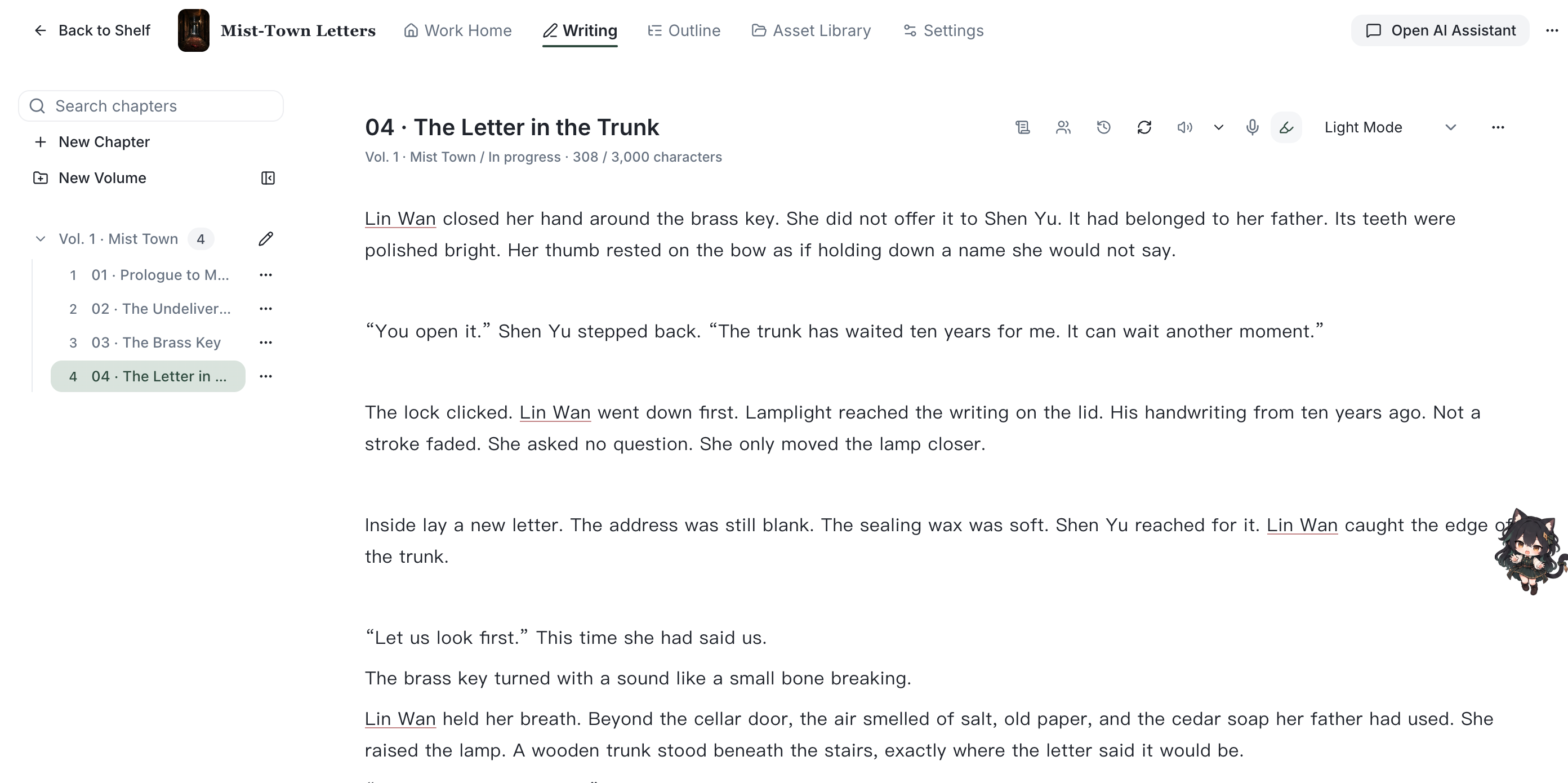
Steps
- The writing surface stays a single stream of prose — no styling to manage. To change font or size, open "Reading Preferences" at the bottom of the View Options menu — display only; it never alters the document.
- To break a scene, click "Insert Separator" (Cmd/Ctrl+Shift+8) to drop a centered "* * *" line.
- Press Cmd/Ctrl+F to open Find & Replace and search, replace one, or replace all — scoped to the current chapter.
- Turn on "Flavor-Word Highlight" in the toolbar and NovelThread underlines cliché phrases that betray an "AI fingerprint" (like overused web-fiction stock lines) with a red wavy line — a hint only, never a block; manage the list in Settings → Writing Checks → AI Flavor-Word Filter.
- On macOS (version 26 and later), click the mic icon to "Dictate": recognition runs entirely on-device, transcribing in real time in your current UI language (Chinese or English), and auto-stops after about 2 seconds of silence.
After revising dialogue, use read-aloud and voice input to listen for character voice, pauses, and repeated phrases.
When submitting to a supported platform, use platform copy to prepare the title, prose, and author notes for that platform.